PDF Reader
- 3.2
- Rating
- 1.00M
- Installs
- Free
- Price
 Analysis by App-foxy
PDF Reader from Droid Planet is the kind of business app I reach for when I need to open a document quickly rather than manage an entire document library. Its purpose is straightforward: give you access to PDF files on an Android device through a dedicated reader. I tested it with the mindset of someone who receives invoices, forms, manuals, and work attachments during a normal day, and my overall impression is practical but qualified. It is useful when the main job is opening and reading a PDF, yet it is not automatically the best choice for every document-heavy workflow.
The app is free, available to everyone, and belongs to the Business category. Droid Planet presents it as a PDF reader, and that description is important because it sets a sensible expectation: this is primarily about accessing documents, not replacing a full office suite. The current release is version 5.0.9, and it runs on Android 7.0 or later. That broad system compatibility makes it approachable for people using older phones, although the experience can still vary depending on storage, file location, and the way a document reaches the device.
Where people usually get stuck
The first source of confusion is often not the reader itself but the file. A PDF may arrive as an email attachment, sit inside a messaging conversation, remain in a downloads folder, or be opened from cloud storage. When I cannot find a document inside a reader, I first check where the file was actually saved instead of assuming the app failed. Android can expose the same document through different apps, and a file that was merely previewed is not always stored where I expect.
You May Also Like

 Blood Strike: 2.5 Anniversary
Blood Strike’s Loadouts Turn Every Drop Into a Tactical Gamble
A close look at Blood Strike’s custom loadouts: how fast access to signature weapons reshapes its battle royale rhythm, rewards preparation, and narrows the gap between fights.

 Pandora - Music & Podcasts
Pandora’s Music Is Easy to Start, but Harder to Recover
Pandora’s strength is its low-effort path from a seed to a station. Its weak spot is how much confidence it asks you to place in connection, setup, and quiet recovery.

 8 Ball Pool
 Is Built on Rivalries, Rematches, and Routine
A close look at the rivalries, rematches, shared routines, and unanswered safety questions that turn a quick pool match into a persistent mobile community.

 Samsung Music
’s Quiet Strength Is Playing What You Already Own
Its reach comes less from spectacle than from dependable access to a personal library. That simplicity is both the app’s strongest retention engine and its ceiling.

 AccuWeather: Weather Radar
AccuWeather Review: A Quick, Clear Forecast for Everyday Decisions
For everyday plans, the best forecast is the one you can understand quickly. AccuWeather makes rain timing, radar, and local conditions easy to act on, with a few trade-offs.

 Hill Climb Racing
Why Hill Climb Racing Still Turns Crashes Into One More Run
A tiny car, a bumpy hill and one more upgrade: Hill Climb Racing keeps resurfacing because its simple chaos makes every near-miss feel personal.
More From Our News Desk



Another common sticking point is choosing the right app when Android asks how to open a PDF. If several readers are installed, the system may show a selection screen. I prefer choosing the reader only for the current file until I know it suits my routine. That avoids turning a quick test into a permanent default decision. If the app does not appear in the chooser, opening it first and then using the device’s file browser can be a more reliable route.
Large or complicated documents can also create a misleading impression. A PDF containing many scanned pages, unusual fonts, embedded images, or interactive elements is more demanding than a simple text document. If one file opens slowly while a small form opens normally, I would treat that as a document-specific problem first. Closing other apps, waiting for the file to finish loading, and trying a local copy can help separate a heavy document from a general reader issue.
The most useful habit is to identify the file’s location before troubleshooting the reader. This sounds basic, but it saves time. I check the notification from the download, the device’s file manager, and the original source app. If the document exists in only one place, I avoid repeatedly tapping a preview and instead open that actual saved copy with PDF Reader.
What the app is best suited to do
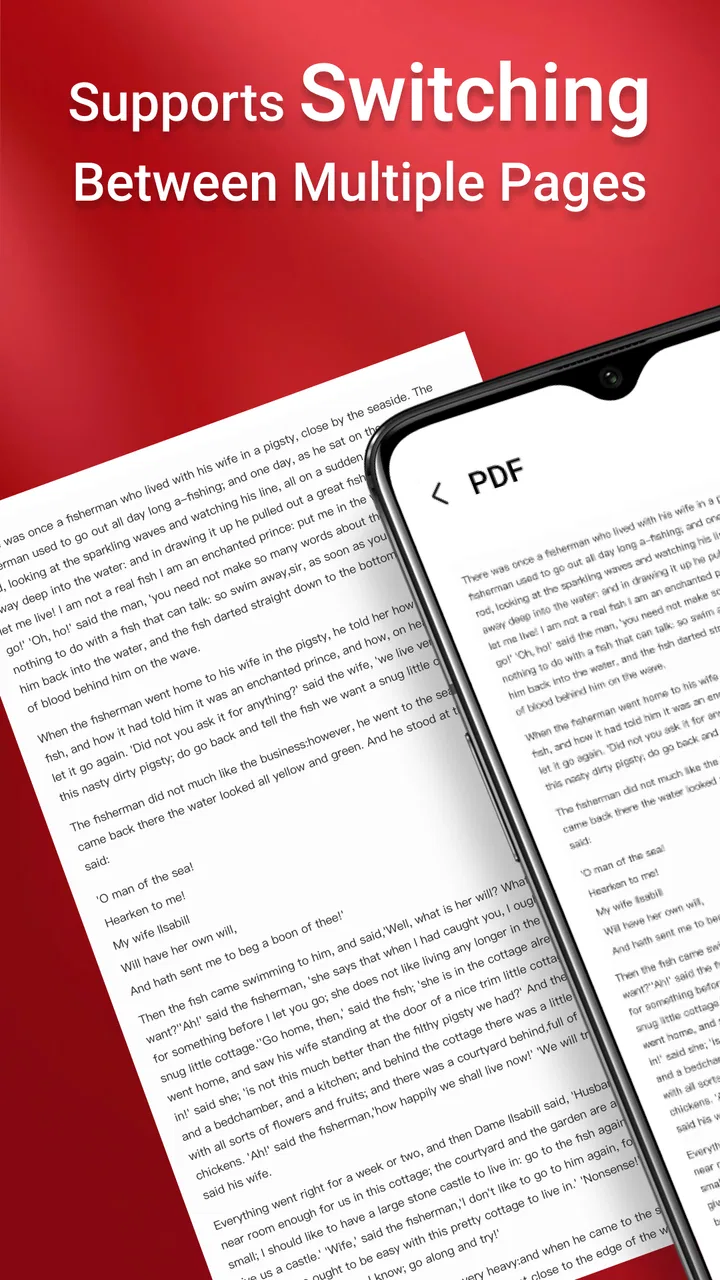
In my experience, the strongest use case is quick reference. I can open a work instruction, check a page in a supplied form, read a short report, or confirm a detail in a manual without launching a broader productivity environment. That narrower purpose can be an advantage on a phone, where I often want to read something immediately and move on.
It is also a reasonable fit for people who receive PDFs irregularly. If your needs are occasional reading rather than daily editing, signing, converting, or organizing, a focused reader may feel less distracting than a large office application. The free price removes a separate purchasing decision, which is helpful for students, casual users, and small teams that simply need a common way to access documents.
On the other hand, I would not choose it as my only tool for a serious document workflow without testing the exact tasks first. Reading is one thing; editing text, filling complex forms, adding signatures, annotating pages, exporting files, or collaborating with colleagues requires a different level of functionality. A dedicated office or document-management app may be better when those actions are central to the job.
Setup checks that prevent avoidable problems
Before judging the app, I make a few simple checks. First, I confirm that the phone uses Android 7.0 or a newer version, since that is the minimum operating system requirement. Second, I make sure the document has finished downloading. A partially downloaded attachment can look like a reader problem even though the file itself is incomplete. Third, I check available device storage, particularly when the document contains many pages or images.
I also test one ordinary PDF before relying on the app for an important meeting or deadline. A simple, locally stored document is useful as a baseline. If that opens normally, I then try the specific file I need. This two-step check tells me whether the problem follows the app or follows the document. It is a small routine, but it is more informative than reinstalling immediately.
When a file comes from a browser or messaging app, I use the system’s share or open-with option rather than searching randomly through folders. The exact wording can differ between Android devices, but the principle is the same: send the document directly to the reader. If the file is stored in cloud storage, I first make sure it is available to the device, because a reader cannot reliably display a file that has not been downloaded or made accessible by the source service.
For work documents, I keep the original file untouched and create a separate copy when experimenting. This is especially helpful if I am checking whether a damaged document can be opened. It prevents accidental replacement of the only copy and makes it easier to compare the original with a newly downloaded version. PDF Reader is most useful when the file-handling part of the process is kept orderly.
Making the first session easier
I recommend opening the app with a small, familiar document rather than beginning with a lengthy scanned archive. This gives you a quick sense of loading behavior and navigation on your phone. It also helps reveal whether the device’s screen size makes reading comfortable. On a compact display, a document may be technically readable but still tiring if you need to zoom constantly.
When a document opens, I pay attention to whether the issue is visual or functional. A strange font, missing image, or misplaced element may come from how the PDF was created. If the same file looks wrong in more than one reader, the file is the likely cause. That distinction matters because changing readers cannot repair every document-generation error.
I also avoid testing an important file while the phone is busy with several downloads or background tasks. This is not a special requirement of this particular app; it is simply a sensible way to reduce variables. A calmer test gives a clearer answer about whether PDF Reader is suitable for the task.
Recovering a workflow when opening fails
When a document refuses to open, I use a gradual recovery process. I begin by closing the file and trying it again from its actual saved location. If that does not help, I download a fresh copy from the original source. Attachments can become incomplete during a poor connection, and a second download often tells me more than repeated attempts with the same damaged file.
Next, I try a different ordinary PDF. If another document works, I focus on the original file: its size, source, and completeness. If no PDF opens, I restart the phone and repeat the test with a local file. Restarting is worthwhile because it clears temporary system conditions without changing the document or introducing another app into the process.
If the problem continues, I check whether the app and the operating system are behaving normally in other areas. I avoid clearing app data casually because that can remove local state or force me to repeat setup steps. A safer order is to close the app, restart the device, verify the file, and only then consider more disruptive maintenance. The exact menus vary by Android manufacturer, so I follow the phone’s own settings labels rather than guessing at a universal path.
One useful recovery trick is to move a copy of the document to a straightforward local folder and open that copy. This removes cloud synchronization, messaging previews, and browser handoffs from the test. If the local copy works, the reader may be fine and the original route is where the friction lies. I then fix the transfer method instead of blaming the reading app.
For a document that opens but appears incomplete, I wait for the pages to finish rendering before deciding that content is missing. I also try returning to the document list and reopening it once. If only a particular page remains problematic, I look for a cleaner version from the sender. A PDF can contain damaged or unusual page content that affects one section while leaving the rest readable.
Keeping work moving without losing the original
If I need information urgently, I preserve the original file and ask the sender for a new copy rather than repeatedly modifying the same document. This is especially important with invoices, contracts, and application forms. A replacement file from the source is more trustworthy than a chain of improvised conversions.
When the job is simply reading, I can often continue by using another trusted reader temporarily while diagnosing the issue. That does not mean PDF Reader is poor; it means document compatibility is not perfectly uniform. Some files rely on elements that one reader handles more gracefully than another. For routine work, I prefer keeping a backup reading option available instead of discovering a compatibility problem five minutes before a deadline.
There is also a practical distinction between viewing and changing. If I only need to inspect a document, PDF Reader can be a sensible first choice. If I must fill fields, sign, mark up, or send back a revised file, I switch to an app designed for that action. Expecting a reader to behave like a complete document editor is one of the easiest ways to create unnecessary frustration.
When the app is not the cause
Some failures originate outside the application. A sender may have attached the wrong file, exported an empty document, or shared a link that requires access. A cloud service may be offline, a browser download may have stopped, or a messaging app may still be showing a temporary preview. In each case, the reader is only the last step in a longer chain.
I see this most clearly with workplace attachments. Imagine receiving a supplier invoice while traveling. I tap the attachment, but the document displays a blank page. Before replacing the reader, I check whether the attachment completed, save it locally, and compare its file size with a fresh download. If a newly downloaded copy opens, the original transfer was the real problem. If neither copy works in multiple readers, I contact the supplier for a clean export.
Phone storage and system condition can matter as well. A device that is nearly full may struggle with downloads and temporary document handling. An older phone may also take longer to render image-heavy pages. These limitations do not necessarily reflect the quality of PDF Reader; they affect the entire reading process. Freeing a little storage, closing demanding apps, and using a local copy are sensible first steps.
Security is another reason to be careful with unfamiliar files. I do not treat a PDF as automatically trustworthy simply because it opens. For documents from unknown sources, I avoid entering sensitive information or following unexpected instructions inside the file. The reader’s role is to display the document; it does not make the sender or the content reliable.
Compared with a browser’s built-in PDF preview, a dedicated reader is more convenient when I repeatedly open local documents. The browser is often enough for a one-off file, especially when the document is already online. Compared with a full office suite, PDF Reader is more focused and potentially less cumbersome for viewing, but it is not the natural choice for editing-heavy work. That is the key trade-off: simplicity for reading versus breadth for document production.
Who should use it and who should skip it
I think it suits Android users who want a free, direct way to access PDF files and do not need a large collection of editing tools. It is particularly sensible for occasional business reading, personal records, reference manuals, and attachments that need a quick look. The Everyone age rating also makes it approachable for general household use, not just office workers.
I would be more cautious if your daily routine depends on advanced forms, signatures, annotations, conversion, or shared document review. In that situation, choose a tool built around those actions and use this reader only as a backup viewer if it fits your device. I would also skip making it your sole option for critical deadlines until you have tested the documents your organization actually sends.
The app has reached over a million installs, while its average rating is around three and a half stars from roughly one and a half thousand ratings. I read that combination as a sign of broad usefulness with room for individual differences in experience, rather than as a reason to accept or reject it automatically. The right question is whether its focused reading role matches your needs.
My practical verdict
After using PDF Reader as a straightforward document viewer, I see its value in reducing the distance between receiving a PDF and reading it. It does not need to be a complete office environment to be useful. For a person who wants a free reader on an Android phone, supports an older system, and mainly handles everyday documents, it is a reasonable option to try.
My recommendation comes with one condition: test your own workflow. Open a local PDF, try an attachment, and check a document from the source you use most. Learn where your phone saves files and keep an alternate route for urgent documents. Those small habits prevent most of the confusion that users may incorrectly attribute to the app.
In the end, I would choose it for reading first and treat advanced document work separately. Droid Planet’s app is at its best when the task is clear, the file is complete, and the expectation is access rather than full editing. If that describes your day, PDF Reader is a practical free starting point for everyday PDF access. If your work revolves around modifying and signing documents, a more specialized alternative will likely serve you better.
FAQs for PDF Reader
01What features does the PDF Reader app offer?
The PDF Reader app provides a variety of features, including viewing, annotating, and editing PDFs. Users can highlight text, add comments, and fill out forms. It also supports cloud integration, allowing you to access files from services like Google Drive and Dropbox. Advanced versions may include OCR and conversion tools.
02Is the PDF Reader app compatible with both Android and iOS devices?
Yes, the PDF Reader app is designed to work seamlessly on both Android and iOS platforms. It supports various versions of each operating system, ensuring a smooth experience across devices. Check the app store listing for specific compatibility details that may be relevant to your device model.
03Does the PDF Reader app require an internet connection to function?
While the PDF Reader app can operate offline for basic functionalities like reading and annotating, some features require an internet connection. Cloud storage access, online collaboration, and software updates necessitate connectivity. Always check the app's requirements to understand its full capabilities offline and online.
04Are there any subscription fees for using the PDF Reader app?
The PDF Reader app may offer a free version with basic functionalities, but advanced features often come with a subscription model. These may include enhanced editing tools, cloud storage integration, and ad-free usage. Be sure to review the pricing details and subscription plans within the app to determine what best suits your needs.
05How user-friendly is the PDF Reader app for beginners?
The PDF Reader app is designed with user-friendliness in mind, offering an intuitive interface that makes navigation easy for beginners. It typically includes a tutorial to help new users get started. The layout is straightforward, and features are usually well-organized, making it accessible for users of all experience levels.
Pros
- User-friendly interface for easy navigation.
- Supports a wide range of file formats.
- Allows annotations and highlighting.
- Offline access to documents.
- Fast and responsive performance.
Cons
- Contains ads in free version.
- Limited advanced features without subscription.
- Some tools require internet access.
- Occasional crashes on older devices.
- Large file downloads can be slow.

PDF Reader
Gallery